














FTP Access Procedure
Table of Contents
- Download WinSCP software
- Log in to WinSCP
- Access the files
Download WinSCP software
1. Go to the software website
Go to https://winscp.net/eng/download.php to download the software.
2. Download the software
Click the Download WinSCP button.
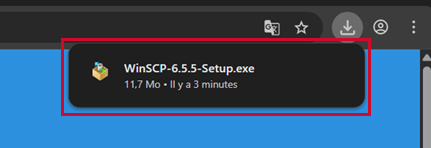
3. Open the downloaded file
Click the WinSCP-Setup.exe file once the download is complete.
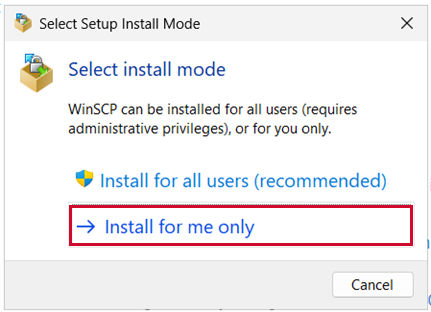
4. Choose the installation mode
Select Install for me only.
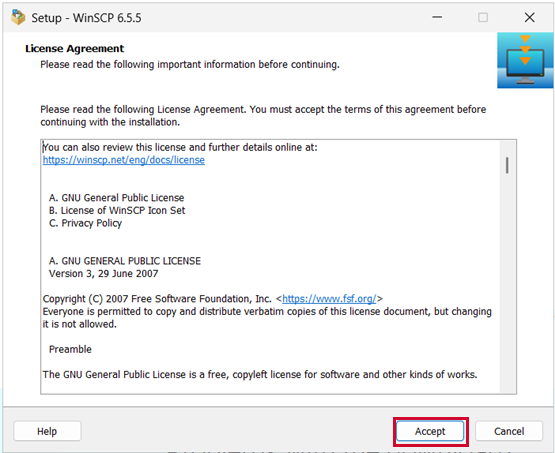
5. Accept the license
Click Accept.
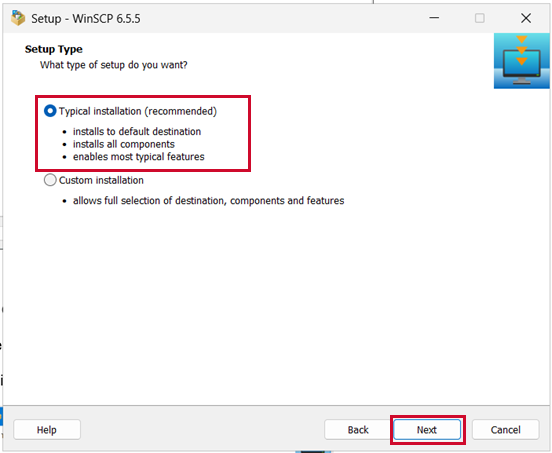
6. Choose the installation type
Select Typical installation (recommended) and click Next.
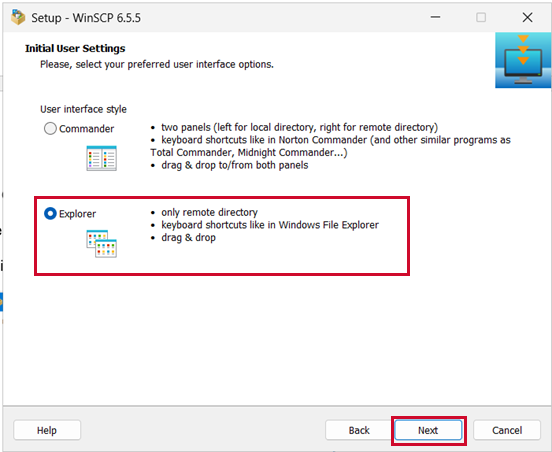
7. Coose the interface style
Select Explorer and click Next.
You can use the Commander interface, but we find the Explorer interface more intuitive.
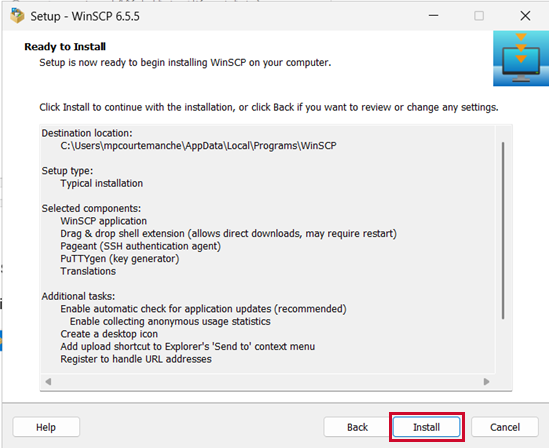
8. Start the installation
Click Install.
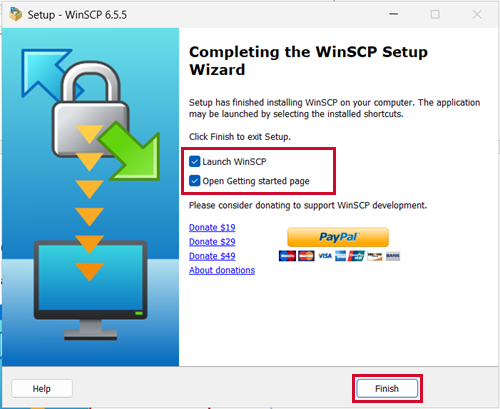
9. Complete the installation
Leave the default options selected, then click Finish.
Log in to WinSCP
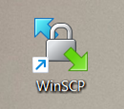
10. Open software
Click on the software icon to open it, if it is not already open.
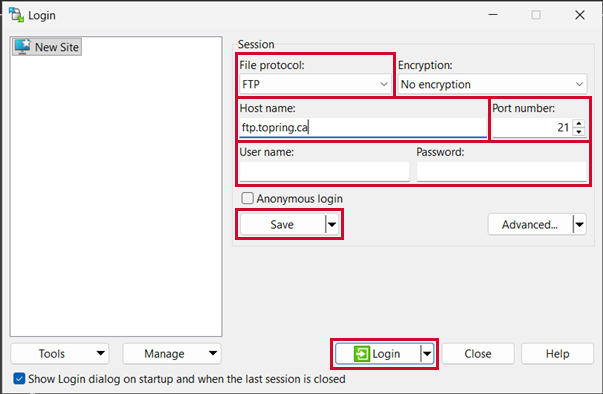
11. Enter login information
In the Login window:
- File Protocol: FTP
- Port number: 21
- Encryption: No encryption
- Host name: ftp.topring.ca
- Username: the one that was given to you
- Password: the one that was given to you
You can Save the information, if desired. Click Login.
Access the files
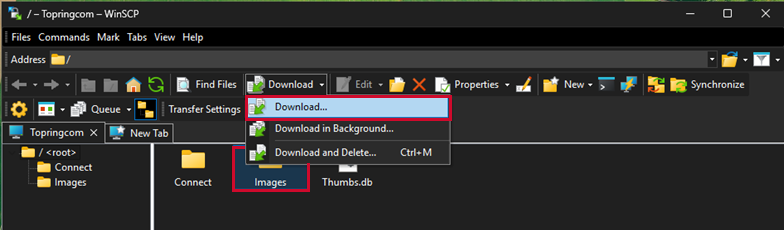
12. Download the files
Select the desired folder, without opening it, and click Download...
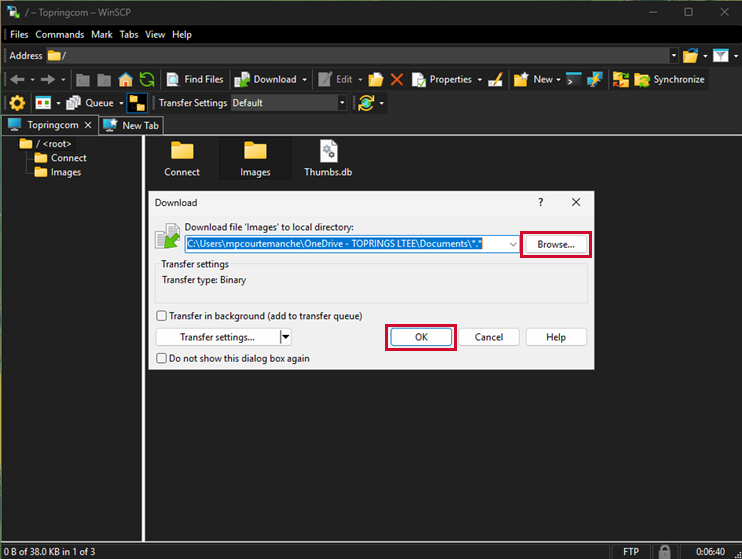
13. Save the files
Using the Browse button, select the location on your computer where you want to save the folder. Once you have chosen the location, click OK.
14. Open the files
Go to the location where the folder was saved – the files are ready to use.